Why Does My Second Monitor Keep Flickering? (7 Easy Fixes)
Note: If you buy through links on our site, we may earn an affiliate commission at no extra cost to you. How this works.
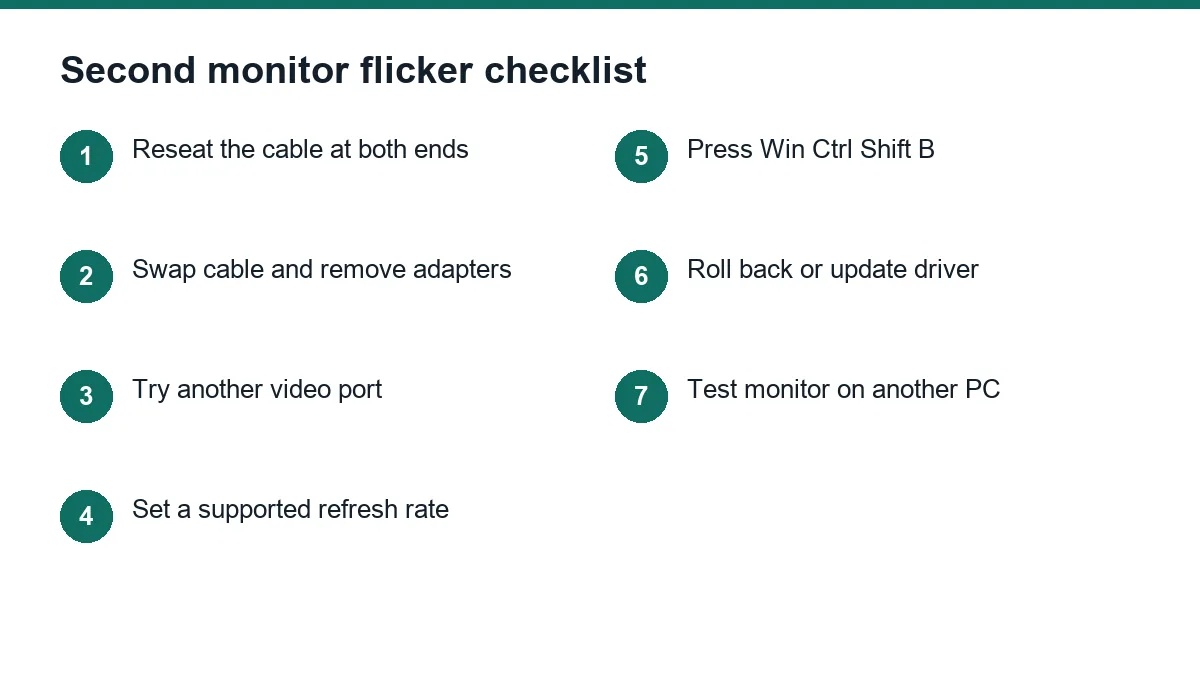
- Reseat both ends of the second monitor's cable
- Swap the cable and skip adapters or docks
- Set a refresh rate the monitor supports
- Reset the graphics driver with Win + Ctrl + Shift + B
- Roll back or reinstall the display driver
Why does only the second monitor flicker?
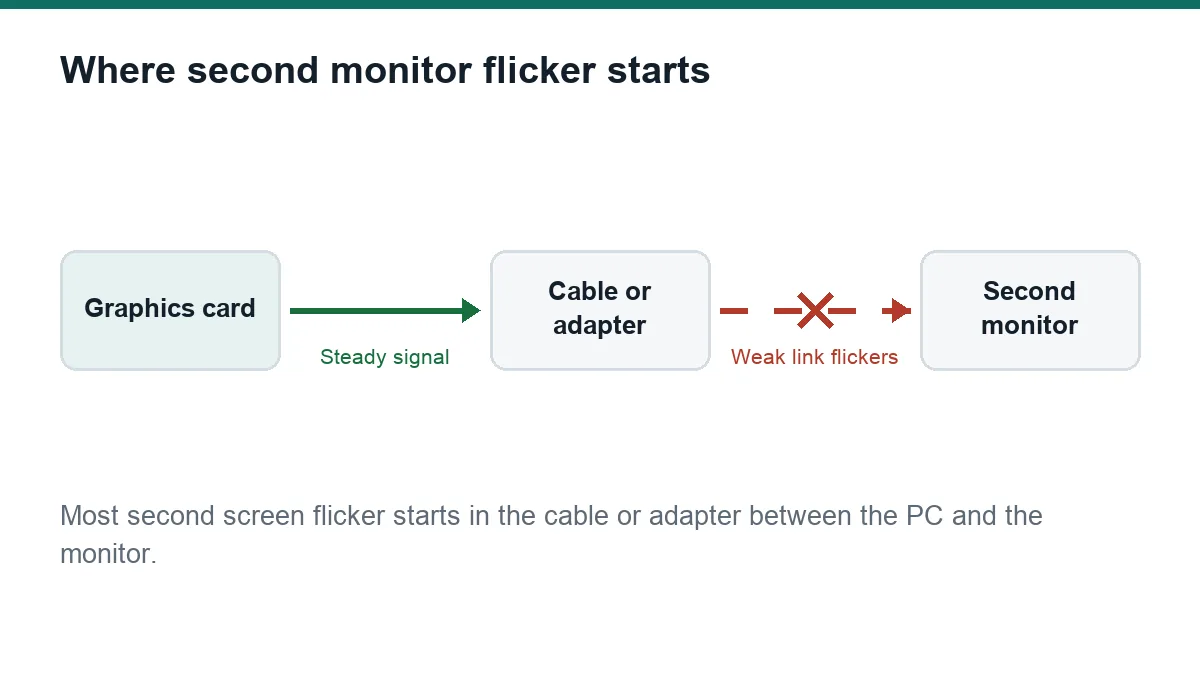
If only the extra screen flickers, the fault is usually in that screen’s own signal path. The signal travels from the graphics card, through a port, a cable and maybe an adapter, into the monitor.
The most common causes are:
- A loose or worn cable: a plug that is not fully seated drops the signal for a split second.
- An adapter, dock or hub: USB-C docks and HDMI to DisplayPort adapters often struggle with high resolutions.
- A refresh rate it cannot hold: the second screen may be set higher than its cable or port supports.
- A driver problem: Microsoft says flicker in Windows is usually caused by a display driver or an incompatible app.
- Power or interference: a shared power strip or a cable lying across power bricks can add noise.
If the flicker follows one cable, see our guide on a monitor that flickers on one cable.
Is the flicker from Windows or from the monitor?
Microsoft suggests a quick test. Press Ctrl + Alt + Delete and open Task Manager, then drag it onto the second screen.
If Task Manager flickers along with everything else, a display driver is the likely cause. If Task Manager stays steady while the rest flickers, an app is the likely cause.
Key takeaway: if the monitor’s own menu also flickers, the fault is in the cable, power or monitor, not Windows. The menu is drawn by the monitor itself.
What you need before you start
- A known good cable: borrow one from the main monitor or another working setup.
- The monitor’s manual: it lists the supported resolutions and refresh rates for each port.
- Admin access to the PC: Microsoft notes you need it to roll back or uninstall a driver.
- A different wall outlet: useful to rule out a noisy power strip.
Safety note: turn off and unplug the monitor before you swap power cables. Never open the monitor case, since parts inside can hold a charge and opening it can void the warranty.
How do you stop a second monitor flickering?
Step 1: Reseat the cable at both ends
Turn the monitor off, unplug the video cable at the PC and the monitor, then push each end in firmly. Check for bent pins on DisplayPort and DVI plugs.
Step 2: Swap the cable and remove adapters
Microsoft’s monitor guide says to try a different cable and to disconnect docks, dongles and adapters, since they can cause conflicts. Use a direct cable from the graphics card if you can.
Step 3: Try another port
Plug the second monitor into a different video output on the PC. On a desktop, use the ports on the graphics card, not the ones on the motherboard. Our HDMI vs DisplayPort guide explains which port carries more bandwidth.
Step 4: Set a supported refresh rate
Open Start > Settings > System > Display > Advanced display. Pick the second monitor at the top, then choose a refresh rate listed in its manual. Drop to 60Hz as a test.
Step 5: Reset the graphics driver
Press Windows logo key + Ctrl + Shift + B. The screens go black for a moment, then the driver restarts. If that does not help, restart the PC.
Step 6: Roll back or update the display driver
Search for Device Manager, expand Display adapters, right-click your adapter and select Properties. On the Driver tab, choose Roll Back Driver if flicker began after an update. Otherwise choose Update driver, or get the latest one from the graphics card maker.
Step 7: Test the monitor on another device
Connect it to a different laptop or PC. If it still flickers there, the monitor is the problem.
Still not working? What to check next
If the steps above did not stop it, look at the parts that wear out or fall short.
- The graphics card’s limit: some cards cannot drive two high refresh screens at full speed. Check the maker’s spec page.
- The dock or USB-C port: a single USB-C port may share its bandwidth across two screens.
- Variable refresh settings: adaptive sync on one screen and not the other can cause brief flashes in some setups. Try turning it off on the second screen.
- The monitor’s power supply or backlight: flicker that gets worse as the screen warms up often points to failing hardware.
If the monitor flickers on every PC and every cable, contact the maker for a warranty repair. For other screen faults, the display and screen help hub lists related guides.
Common mistakes to avoid
- Blaming Windows first: if the monitor’s own menu flickers, no driver change will help.
- Keeping the old cable: a cable can look fine and still fail at high resolutions. Swap it before anything else.
- Using a passive adapter for high refresh: many cheap adapters only carry lower refresh rates. Use a direct cable where possible.
- Setting the highest rate listed: Windows can list rates the cable cannot carry. Choose what the manual lists for that port.
- Installing many drivers at once: change one thing at a time, then test, so you know what fixed it.
- Opening the monitor: the power board can hold a charge. Leave repairs to the maker or a qualified technician.
Products for this job
Related products on Amazon. We have not tested these ourselves; check the specs and the reviews on Amazon before you buy.
 Cable Matters 32.4Gbps DisplayPort 1.4 CableCheck price on Amazon
 Amazon Basics Ultra High Speed HDMI 2.1 CableCheck price on Amazon
 Anker USB C to HDMI Adapter (4K@60Hz)Check price on Amazon
Frequently Asked Questions
Can a bad HDMI cable make a monitor flicker?
Yes. A worn or low grade cable can drop the signal for a moment, causing flicker or brief black screens. Swap it with a known good cable and see if the flicker stops before you change any settings.
Why does my second monitor flicker only when gaming?
Games push the graphics card harder and often switch refresh rates or turn on adaptive sync. Set both screens to supported rates, update the graphics driver, and test with adaptive sync off on the second screen.
Is a flickering monitor bad for my eyes?
Flicker can cause eye strain, tiredness and headaches over a long day, even if it seems faint. Fix the cause or take regular breaks until it is sorted, and stop using the screen if headaches start.
Should I replace a monitor that flickers on every PC?
If it flickers with different cables, ports and computers, the fault is almost certainly inside the monitor. Check the warranty first, since the maker may repair or replace it, and avoid opening the case yourself.