How to Fix Smart Bulb Flickering When Turned Off (6 Steps)
Note: If you buy through links on our site, we may earn an affiliate commission at no extra cost to you. How this works.
- Leave the wall switch on and turn off by app
- Check for a lit switch or old dimmer
- Tighten the bulb with the power off
- Update the bulb firmware in its app
- Ask an electrician about a neutral wire or bypass part
Why does a smart bulb flicker after you turn it off?
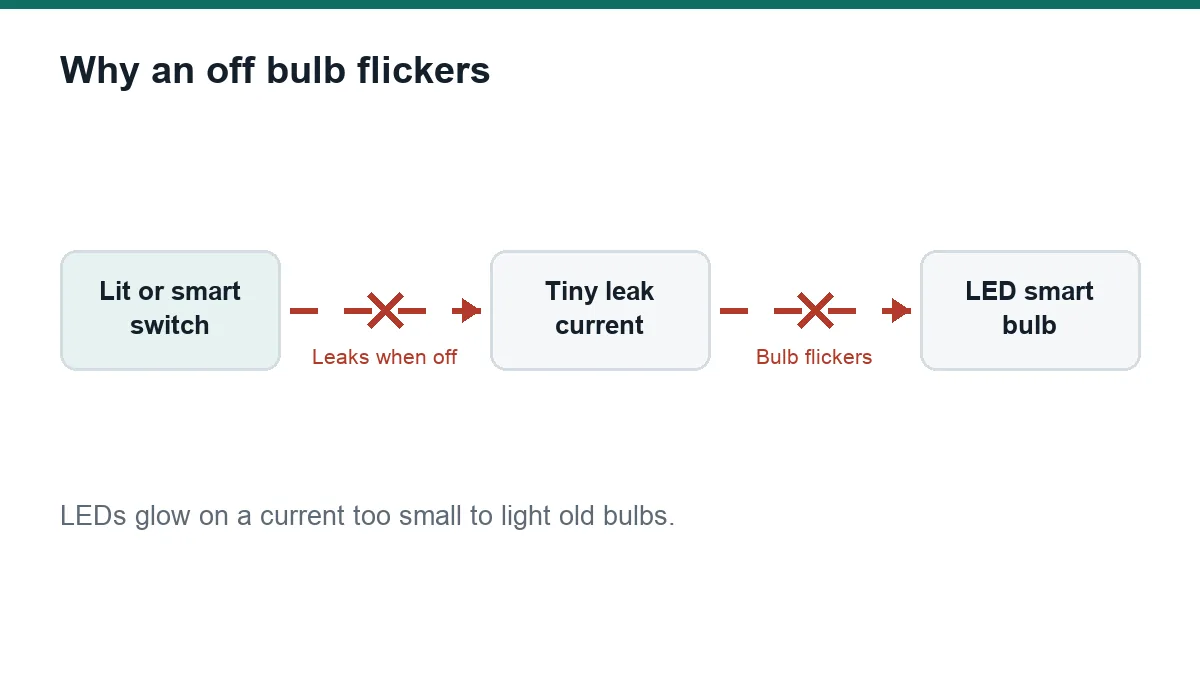
LED bulbs need very little power to glow. Even a tiny current that sneaks past an off switch can make them flicker or shine faintly. Smart bulbs add a second issue: they blink to signal a lost connection.
- Lighted or smart wall switch: switches with a glowing locator light pass a small current through the bulb. Many smart switches without a neutral wire do the same.
- Old dimmer: Philips Hue notes that dimmers made for incandescent bulbs can cause LED flicker.
- Induced voltage: long wire runs next to live wires can pick up enough voltage to make an LED glow.
- Loose bulb or socket: a poor contact causes flicker whether the light is on or off.
- Lost connection or setup mode: a Hue bulb may blink when it loses its Bridge or Wi-Fi link, or while pairing.
More light and plug problems are listed in the smart home help hub.
Is the flicker dangerous?
A faint glow from a lit switch is usually harmless. It is a known side effect of pairing LEDs with switches built for old bulbs.
Watch for buzzing, a hot switch plate, a burning smell, or flicker across the whole house. Those signs can point to a wiring fault. Turn off the breaker and call a licensed electrician.
What you need
- The bulb’s app, signed in, to control and update the bulb.
- A step stool to reach the fixture safely.
- A second lamp or fixture to test the bulb somewhere else.
- A phone flashlight to see while the power is off.
Safety note: turn off the breaker before you touch a fixture or socket. Do not open wall switches or work on wiring yourself. Changing a switch or adding parts is a job for a licensed electrician.
Step-by-step: how to stop the flicker
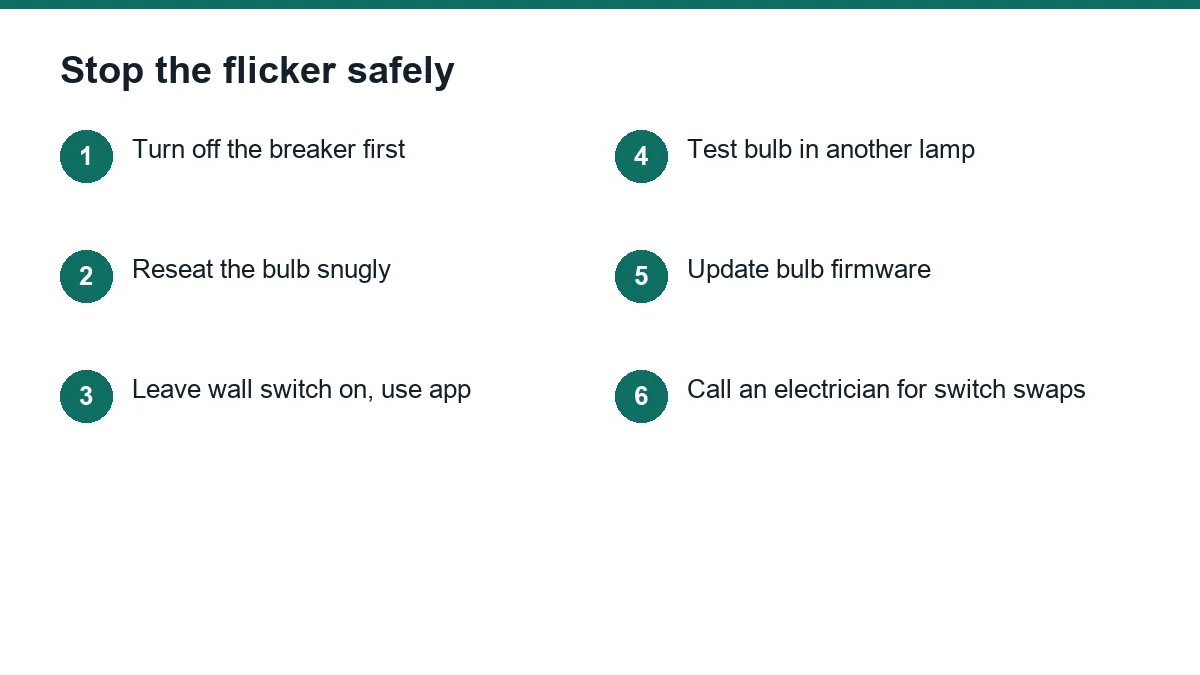
Step 1: Turn off the power safely
Switch off the light, then turn off the breaker for that room. Let the bulb cool for a few minutes before you touch it.
Step 2: Reseat the bulb
Unscrew the bulb and screw it back in until it is snug. Do not overtighten it. Restore power and watch for flicker.
Step 3: Leave the wall switch on
Smart bulbs are built to stay powered and turn off by app or voice. Leave the wall switch on and turn the bulb off from its app. If the flicker stops, the switch was the cause.
Step 4: Test the bulb in another fixture
Move the bulb to a lamp on a plain outlet. If it is steady there, the problem is the original switch or wiring, not the bulb.
Step 5: Update the firmware
Old firmware can make bulbs misbehave. In the Hue app, go to Settings > Software Update. For other brands, look for an update option in the bulb’s settings. Bulbs that drop off Wi-Fi often need the same fixes as a smart plug going offline.
Step 6: Fix the switch with an electrician
If a lit switch, smart switch or old dimmer is the cause, ask an electrician to swap it. Options include a plain switch, an LED-rated dimmer, a smart switch with a neutral wire, or a maker-approved bypass part.
Common mistakes to avoid
- Using a dimmer with a smart bulb: smart bulbs dim themselves. A wall dimmer on top can cause flicker and may shorten bulb life.
- Flipping the wall switch to turn the bulb off: the bulb loses power and its connection, and some switches still leak current.
- Opening the switch box yourself: wiring work carries a shock and fire risk. Turn off the breaker and call a licensed electrician.
- Buying new bulbs first: if a new bulb flickers in the same spot, the switch is the cause.
- Ignoring heat or buzzing: a warm switch plate or buzzing sound is not normal. Stop using that switch and get it checked.
Still not working? What to check next
If the flicker stays after these steps, look at what else might be worn or faulty.
- The bulb itself: if it flickers in every fixture, its driver may be failing. Replace it or contact the maker under warranty.
- The fixture socket: a burnt or loose socket needs an electrician.
- Your Wi-Fi or hub: bulbs that blink often may be losing their link. Many need a 2.4 GHz network, so read connecting smart devices to 2.4 GHz.
- The whole circuit: lights flickering in several rooms need a licensed electrician or your utility.
How do you prevent flicker in the future?
Plan the switch and bulb together. Use smart bulbs with plain switches that stay on, or use smart switches with regular LED bulbs.
If you want dimming, choose an LED-rated dimmer that lists your bulb type. Keep bulbs and the hub updated, and put smart bulbs on a strong, stable Wi-Fi signal.
Products for this job
Related products on Amazon. We have not tested these ourselves; check the specs and the reviews on Amazon before you buy.
 Kasa Smart Plug Ultra Mini 15ACheck price on Amazon
 Philips Hue Essential Smart LED A19 BulbCheck price on Amazon
 Amazon Echo DotCheck price on Amazon
Frequently Asked Questions
Why does my LED bulb glow faintly when the switch is off?
A lit switch, a smart switch without a neutral wire, or long wiring can let a tiny current reach the bulb. LEDs need so little power that this trickle makes them glow, while an old incandescent bulb would stay dark.
Can a flickering smart bulb start a fire?
A faint glow from switch leakage is usually not a fire risk on its own. Buzzing, heat, scorch marks or a burning smell are different. Turn off the breaker and have a licensed electrician inspect the switch and wiring.
Should I put a smart bulb on a dimmer switch?
Most makers advise against it, because a smart bulb already dims itself through its app. A wall dimmer can cause flicker or buzzing, so pair smart bulbs with a plain switch that stays on instead.
Why does my smart bulb flash after a power cut?
Many smart bulbs flash or turn on full brightness when power returns, and some blink while they reconnect. If the blinking continues, check the hub or Wi-Fi, then update the firmware or reset the bulb in its app.