Why Does My Smart Plug Keep Going Offline? (7 Real Fixes)
Note: If you buy through links on our site, we may earn an affiliate commission at no extra cost to you. How this works.
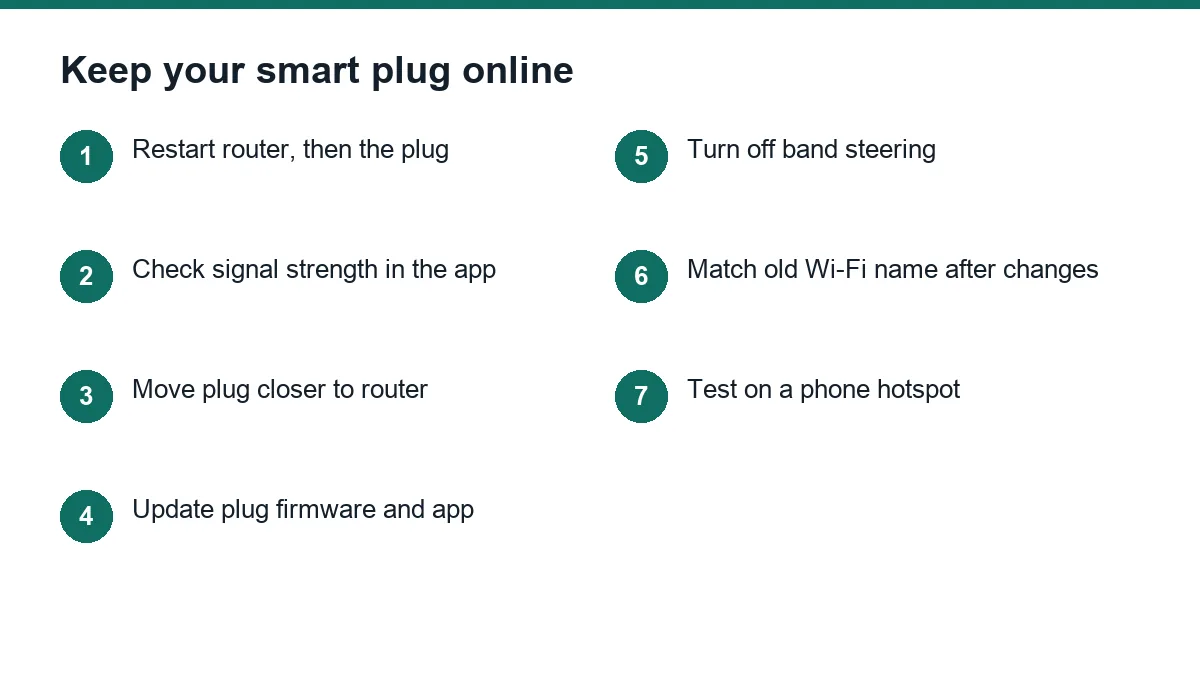
- Restart the router first, then the smart plug
- Check the plug's signal strength in its app
- Move the plug or router closer together
- Update the plug firmware and the app
- Turn off band steering or Wi-Fi optimizing features
Why do smart plugs drop off the network?
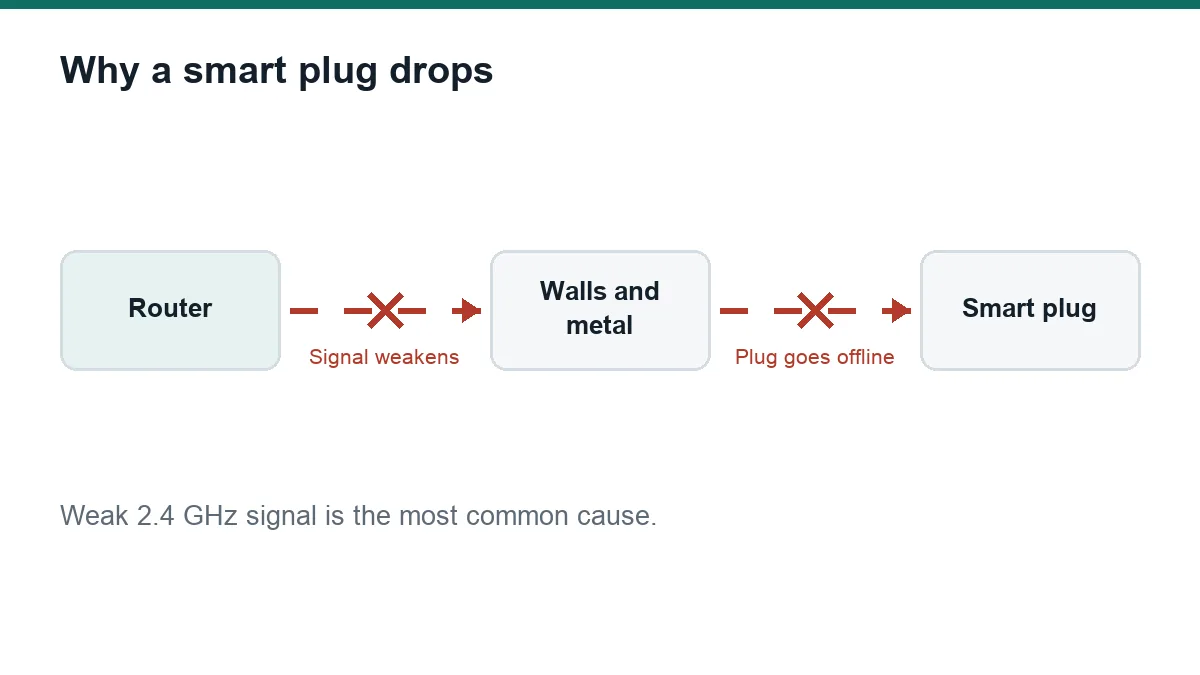
A smart plug is a tiny Wi-Fi device with a small antenna. It is often plugged in low, behind furniture, or far from the router. That makes it one of the first devices to lose signal.
These are the most common causes:
- Weak signal: walls, floors and metal block the plug’s 2.4 GHz connection.
- Router changes: a new router, new password or new network name leaves the plug looking for the old network.
- Band steering: routers that merge 2.4 GHz and 5 GHz under one name can push the plug around.
- Old firmware: bugs in the plug or the app can cause random drops.
- Too many devices: some routers struggle when dozens of smart devices stay connected.
- Power issues: a loose outlet or a power strip that switches off cuts the plug completely.
For more smart device problems, see the smart home help hub.
Is it normal for a smart plug to go offline sometimes?
A short drop is normal. When the router restarts or updates, every smart plug goes offline for a minute or two. Most reconnect on their own once the network is back.
It is not normal if the plug shows offline every day, or stays offline for hours. That points to signal, settings or a failing plug.
Key takeaway: if all your smart devices drop at once, look at the router. If only one plug drops, look at where that plug sits.
What you need
- The plug’s app on your phone, signed in to your account.
- Access to your router through its app or admin page.
- Your Wi-Fi name and password, written down exactly.
- A phone hotspot for a quick test on a different network.
Safety note: never open a smart plug or use one that feels hot, smells burnt or has a cracked case. Unplug it and replace it.
How do you fix a smart plug that keeps going offline?
Work through these steps in order. Test the plug for a day after each change.
Step 1: Restart the router and the plug
Unplug the router for 30 seconds, then plug it back in. Once the Wi-Fi is back, unplug the smart plug for 10 seconds and plug it in again.
Step 2: Check the signal strength
Many plug apps show a signal reading. TP-Link’s Kasa app shows it under Device Settings > Device Info. TP-Link says a reading below -70 dBm is too weak and may cause drops.
Step 3: Move the plug or the router
Try an outlet closer to the router, or one with fewer walls in between. Keep the plug out of metal cabinets and away from microwaves.
Step 4: Update firmware and the app
Install any plug firmware update in the app, then update the app itself. Updates often fix connection bugs.
Step 5: Turn off conflicting router features
TP-Link lists band steering, Smart Connect, Wi-Fi optimizing and automatic channel changes as features that can conflict with its plugs. If your router has a separate 2.4 GHz network name, use it. Our guide on connecting smart devices to 2.4 GHz shows how.
Step 6: Match the old network after a router change
Replaced the router? Give the new one the old network name, password and security type. If that is not possible, reset the plug and set it up again.
Step 7: Test on a phone hotspot
Set the plug up on a 2.4 GHz hotspot for a day. If it stays online there, your main router’s settings are the problem.
Does it matter which app controls the plug?
Yes. A plug can show online in its own app but offline in a voice assistant. That usually means the account link between the two apps broke.
Open the voice assistant app, unlink the plug maker’s skill or service, then link it again. If your voice assistant ignores every command, not just the plug, read how to fix Alexa not responding instead.
Common mistakes to avoid
- Factory resetting first: a reset erases schedules and scenes. Try a restart and a signal check before you reset.
- Using a switched outlet: some outlets are wired to a wall switch. Turning that switch off cuts power to the plug.
- Hiding the plug behind metal: appliances, fridges and metal furniture block Wi-Fi more than walls do.
- Changing the router password without a plan: every plug loses its connection, so match the old settings or reset each one.
- Ignoring heat: a plug that runs hot under a heavy load may be failing. Check the load rating on its label and stop using it if it overheats.
Still not working? What to check next
If the plug drops even beside the router and on a hotspot, the plug itself may be failing. Cheap plugs can have weak antennas or power parts that wear out.
- Check other smart devices: if bulbs drop too, your router may be overloaded. Smart lights can show related symptoms, covered in smart bulb flickering when off.
- Check the router’s device limit: some older routers handle only a modest number of connected devices well.
- Contact the maker: have the plug’s light status, model and router model ready.
If the plug is old or out of warranty, replacing it is often quicker than more troubleshooting.
Products for this job
Related products on Amazon. We have not tested these ourselves; check the specs and the reviews on Amazon before you buy.
 Kasa Smart Plug Ultra Mini 15ACheck price on Amazon
 Philips Hue Essential Smart LED A19 BulbCheck price on Amazon
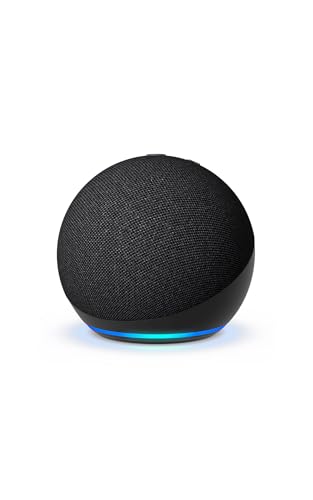 Amazon Echo DotCheck price on Amazon
Frequently Asked Questions
Can a smart plug work without Wi-Fi?
Most Wi-Fi smart plugs still work by hand with their button when the internet is down. Schedules, app control and voice control usually need Wi-Fi, though some plugs keep running saved schedules locally until the connection returns.
Why does my smart plug go offline at night?
Many routers run automatic updates, reboots or channel changes overnight, which knocks smart plugs offline. Check your router for a scheduled reboot or auto update setting, and move those tasks to a time that suits your schedules.
Do smart plugs need 2.4 GHz Wi-Fi?
Most Wi-Fi smart plugs connect only to the 2.4 GHz band because it reaches further and uses less power. They cannot see a 5 GHz network at all, so the router must keep its 2.4 GHz band turned on.
Will a Wi-Fi extender stop my smart plug going offline?
An extender can help if the plug sits in a weak spot far from the router. Place the extender halfway between them, and set the plug up again on the extender network if it uses a different name.